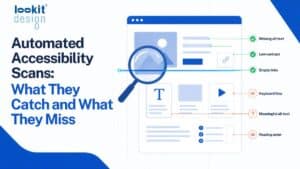
Automated accessibility testing quickly catches the clear, code-level barriers on your website, such as missing alt text, low color contrast and unlabeled form fields. It misses issues that need human judgment, such as whether your alt text makes sense, whether a keyboard user can complete a donation, or whether your content is easy to understand.
Both halves matter. Here’s what a scan can do for your nonprofit, where it stops, and how to build a process that covers the gaps.
The Short Answer: Scans Find Many Problems, but Not All of Them
Think of an automated scan as a spell checker for accessibility. It’s fast, consistent and good at catching mistakes that follow a clear rule. It won’t tell you whether your writing is clear, your story is compelling or your donate button is easy to find.
Most scanners test pages against the Web Content Accessibility Guidelines (WCAG) 2.1 at the AA level, the standard most organizations aim for. Some of those guidelines can be checked by software. Many can’t, because they depend on meaning, context or how a real person moves through a page.
[ADD: share of WCAG issues typically detected by automated scans, with source]
Scans are an excellent starting point and a reliable way to catch new problems over time. They are not a substitute for a person reviewing the site.
How Automated Accessibility Scans Work on a WordPress Site
A scanner loads each page and reads its underlying code, the structure that browsers and assistive technologies such as screen readers rely on. It compares that code against a set of rules and flags anything that breaks them.
What automated scans catch well:
- Missing alt text. Images with no text description for screen reader users.
- Low color contrast. Text that is too light against its background to read comfortably.
- Unlabeled form fields. Donation, signup or contact forms where inputs have no label a screen reader can announce.
- Heading structure problems. Skipped heading levels or pages with no main heading.
- Empty links and buttons. Icons or buttons with no text, so a screen reader announces only “link” or “button.”
- Missing page language. Pages that don’t tell assistive technology which language to read in.
What automated scans usually miss:
- Whether alt text is meaningful. A scanner can tell that alt text exists. It can’t tell that “IMG_4421” describes nothing.
- Keyboard usability. Whether someone using only a keyboard can open menus, close pop-ups and finish a donation.
- Logical reading order. Whether content makes sense when read aloud from top to bottom.
- Clear link text. Whether a link labeled “click here” makes sense out of context.
- Video and audio. Whether captions are accurate and whether transcripts exist.
- Plain language. Whether your content is understandable to people with cognitive disabilities.
WordPress adds a wrinkle. Many nonprofit sites are built with page builders, which generate a lot of code behind the scenes. A scan might report a contrast error, but the error could come from a theme setting, a reusable block or a single button deep in a layout. Finding where the problem actually lives often takes longer than fixing it. This is why we built Lookit Accessibility Audit to trace each issue back to the page-builder element that caused it. Your team can then fix the source once instead of hunting page by page.
Why Accessibility Matters for Nonprofits
Your website is often the first place people meet your mission. Donors give there, volunteers sign up there, and the people you serve look for help there. If part of that audience can’t use the site, they’re shut out of the very work you exist to do.
Several reasons make this especially important for nonprofits:
- Mission alignment. Many nonprofits serve older adults, people with disabilities or communities with limited access to technology. An accessible site reflects your values in practice.
- Fundraising. A donation form a screen reader user can’t complete is a gift you never receive.
- Funder and partner expectations. Some funders, government partners and institutions ask about accessibility. Being able to show an ongoing process helps.
- Legal awareness. Website accessibility is increasingly discussed in connection with the Americans with Disabilities Act. Requirements vary, so talk with qualified legal counsel about your organization’s obligations.
- Better usability for everyone. Clear headings, readable contrast and simple forms help every visitor, including people on phones in bright sunlight.
Small teams also feel the pressure of limited time. Regular scans give you a manageable, prioritized list instead of an overwhelming, unknown problem.
Common Misconceptions About Automated Scans
“A clean scan means our site is accessible.”
A clean result means the site passed the checks software can run. It doesn’t confirm that people with disabilities can use the site. Treat a clean scan as a good sign, not a certificate.
“An overlay plugin will fix everything.”
Some tools promise to make a site accessible by adding a toolbar or script on top of it. These don’t fix the underlying code, and many people who use assistive technology find them unhelpful. Real fixes happen in the site itself.
“We scanned once, so we’re done.”
Every new blog post, event page, image or plugin update can introduce new issues. Automated accessibility testing is most useful when it runs on a schedule, so problems are caught soon after they appear.
“Every flagged issue is equally urgent.”
A missing label on your donation form matters more than a minor issue on an archived 2016 news post. Prioritize the pages and tasks your visitors rely on most.
What to Do Next: A Practical Plan for Your Nonprofit
You don’t need a large budget or a developer on staff to make real progress. Here’s a sequence that works for most organizations:
- Run a full-site scan. Get a baseline of current issues across all pages, not just the homepage.
- Identify your critical paths. List the tasks that matter most, such as donating, registering for an event, signing up for email and finding services.
- Fix the high-impact issues first. Start with errors on those critical paths, then address problems that repeat across many pages, such as a header, footer or shared template.
- Test by hand. Put your mouse aside and try to complete a donation using only the Tab and Enter keys. Note where you get stuck.
- Review your content. Check that alt text describes images meaningfully, that link text makes sense on its own, and that videos have accurate captions.
- Train your content editors. Most new issues come from everyday updates. A short guide for staff and volunteers who post content prevents repeat problems.
- Schedule ongoing scans. Monthly or after major updates is a reasonable rhythm for many nonprofits.
- Publish an accessibility statement. Tell visitors about your commitment and how to report a barrier they encounter.
Consider getting feedback from people who use assistive technology every day. Their experience will surface issues no tool or checklist can.
Frequently Asked Questions
Can automated accessibility testing replace a manual audit?
No. Automated scans reliably catch rule-based issues, but many WCAG requirements depend on human judgment, such as whether content makes sense or whether a form works with a keyboard. The strongest approach combines regular scans with periodic manual review.
How often should a nonprofit scan its website?
Scan on a regular schedule, such as monthly, and after any significant change like a redesign, new theme or major plugin update. Organizations that publish often may benefit from more frequent scans.
What is WCAG 2.1 AA?
WCAG 2.1 is a set of international guidelines for making web content accessible to people with disabilities. Level AA is the middle tier of conformance and the target most organizations use for their websites.
Do accessibility overlays make a website compliant?
Overlays add a layer on top of a site but don’t repair its underlying code, so they don’t resolve most accessibility barriers. Fixing issues directly in your site’s content, theme and templates is the more dependable path.
Talk to Lookit About Accessibility Audit
Lookit Design has built and cared for WordPress sites since 2004, and accessibility is part of how we maintain them. Lookit Accessibility Audit scans for WCAG 2.1 AA issues and points to the exact element causing each one. Our team then helps you fix what matters most and review what software can’t. If you’d like a clearer picture of where your nonprofit’s site stands, get in touch with our team.